Claude.ai & MCP supported — another step towards a more powerful AdzviserRead Me

Free Sprout Social Data Studio Dashboard Templates

Choose a ready-to-use Sprout Social dashboard template, connect live data with Adzviser, and start tracking performance in Data Studio.

Free template gallery

Choose a Sprout Social Data Studio Dashboard Template

Start with the view that matches your reporting goal. Each template is designed for live Sprout Social data and can be customized in Data Studio.

What you can report on

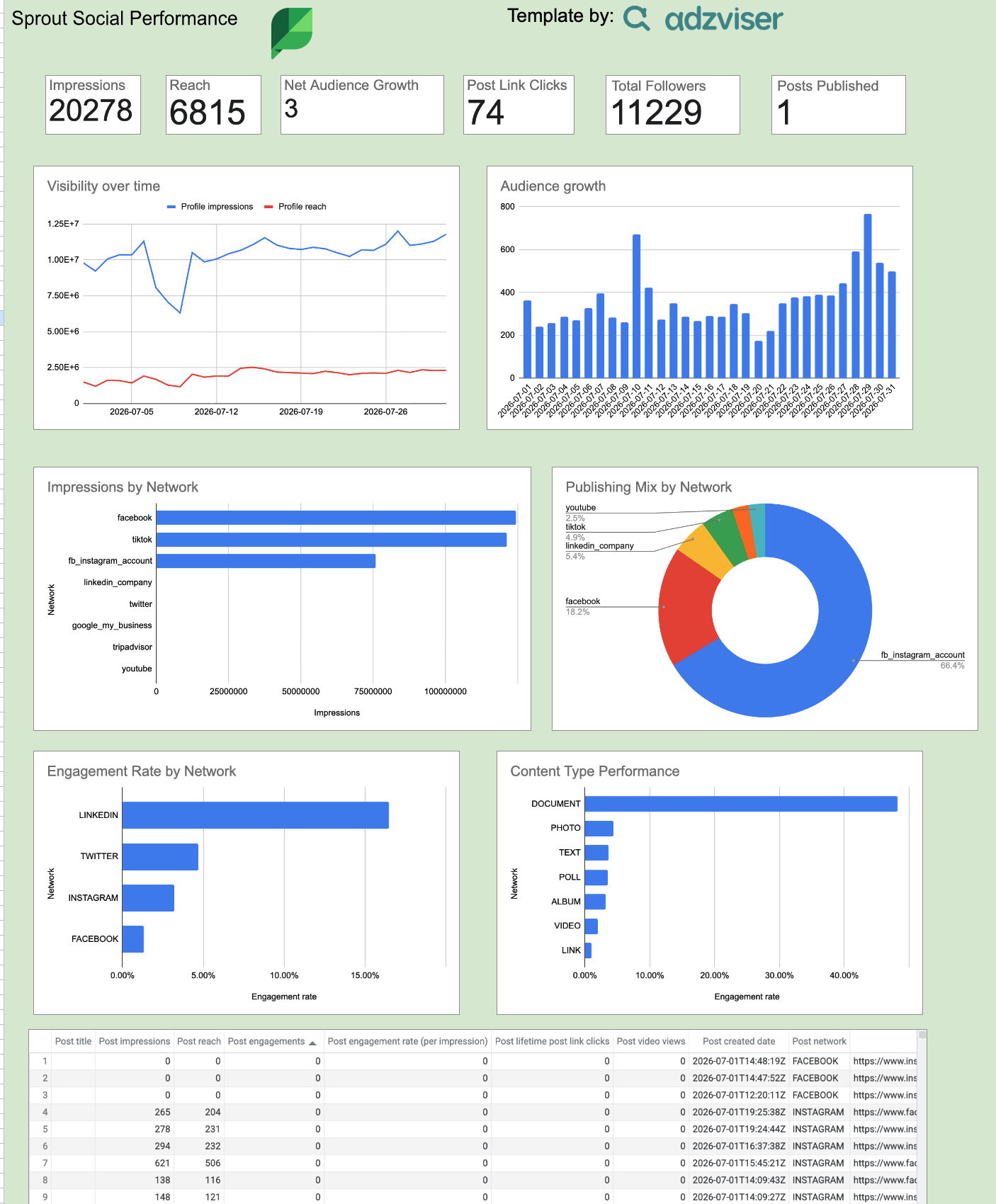
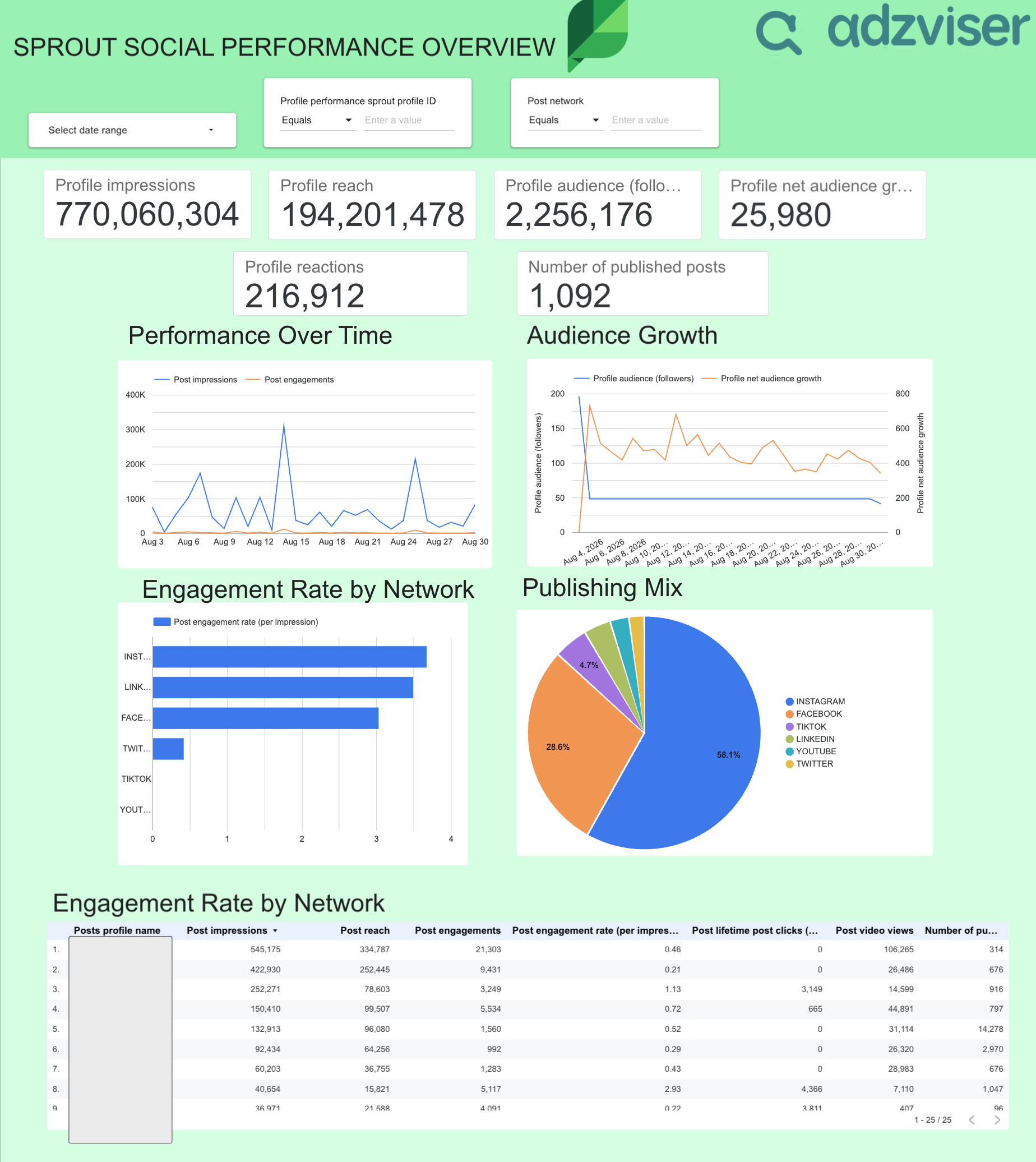
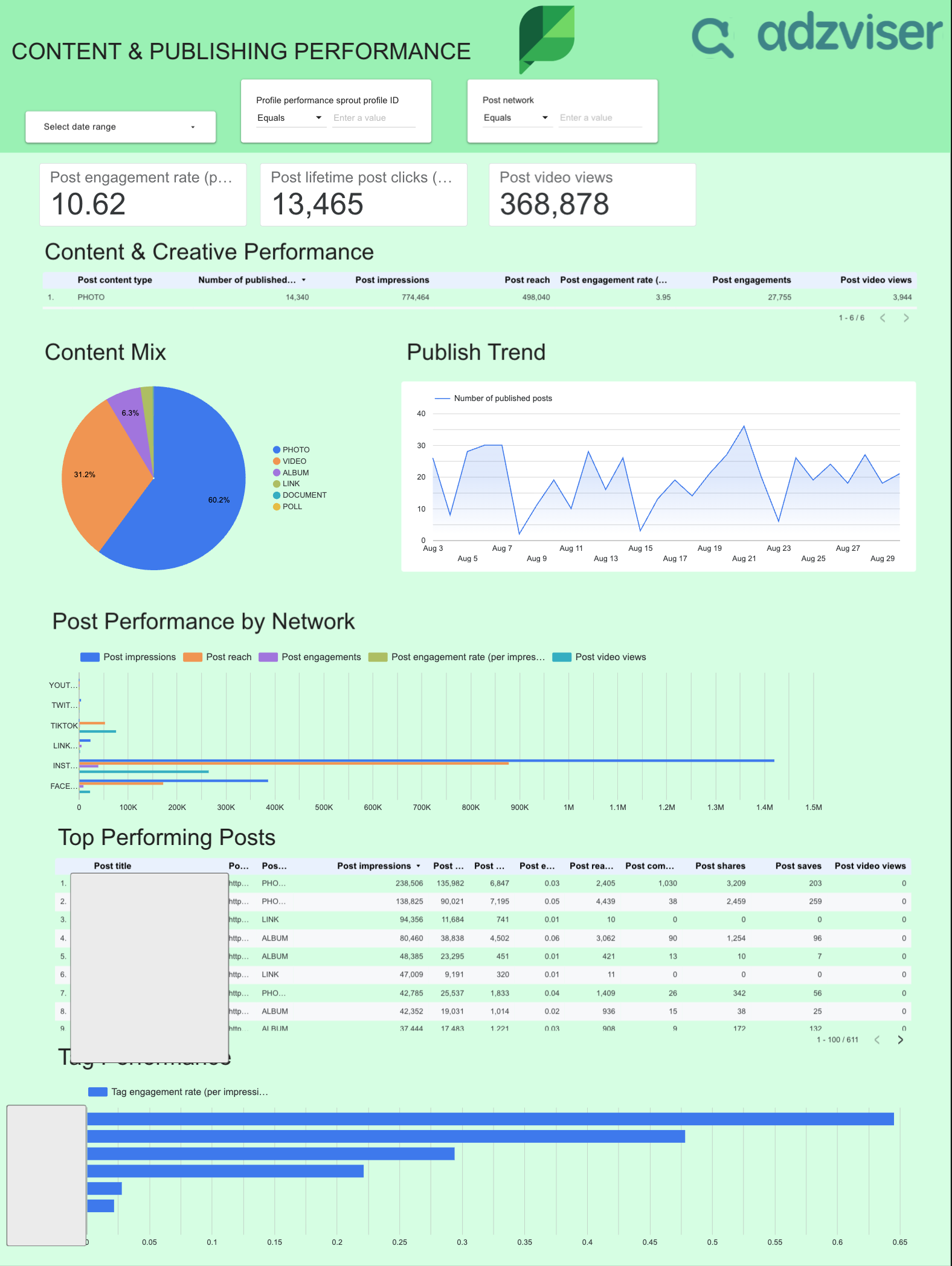
Sprout Social Metrics and Dimensions Included

The available templates cover practical Sprout Social performance fields, so you can analyze results without building every chart and table from scratch.

Popular metrics

  • Profile Impressions
  • Profile Reach
  • Profile Audience (Followers)
  • Profile Net Audience Growth
  • Profile Reactions
  • Number Of Published Posts
  • Post Impressions
  • Post Reach
  • Post Engagements
  • Post Engagement Rate (Per Impression)
  • Post Lifetime Post Clicks
  • Post Video Views

Useful dimensions

  • Date
  • Profile Performance Sprout Profile ID
  • Post Network
  • Posts Profile Name
  • Post Content Type
  • Post Title
  • Post Tags
Setup guide

How to Use a Sprout Social Data Studio Template

Set up a live Sprout Social dashboard in Data Studio with the same guided workflow used across Adzviser integrations.

1

Choose a template

Open the dashboard that best fits the Sprout Social results you want to monitor.

2

Connect Sprout Social

Authorize your account in Adzviser and select the accounts you want the template to report on. Explore the Sprout Social connector

3

Customize and share

Adjust date ranges, filters, charts, and branding directly in Data Studio. Learn about Data Studio

Sprout Social Data Studio Template FAQs

Make a copy of the dashboard, connect Sprout Social to an Adzviser workspace, and replace the sample data source with your authorized Adzviser connector. Check each chart if any sample data remains. Open the Sprout Social connector page

The metrics and dimensions listed above are taken from the templates in this collection. Open an individual template to see its exact field set. You can then add or replace fields supported by the Sprout Social connector.

Yes. Connect the required accounts to your Adzviser workspace. You can select or query multiple accounts, or keep a separate template copy for each client when you need independent filters, access, and branding.

Data Studio requests data through the connected Adzviser source and may cache it according to the data source's freshness setting. You can manually refresh the report when you need to request the latest available data.

Yes. Edit the copied dashboard to change charts, metrics, dimensions, date controls, filters, calculated fields, colors, logos, and pages.

Confirm that Sprout Social is connected in Adzviser and that the copied report uses your Adzviser data source instead of the sample connection. Reconnect any chart that still points to the old source.

Yes. You can open, copy, and customize the templates for free. An Adzviser account is required when you replace the sample data with a live Sprout Social connection.

Start building reports
with Adzviser

Have a question?