Questions this template answers
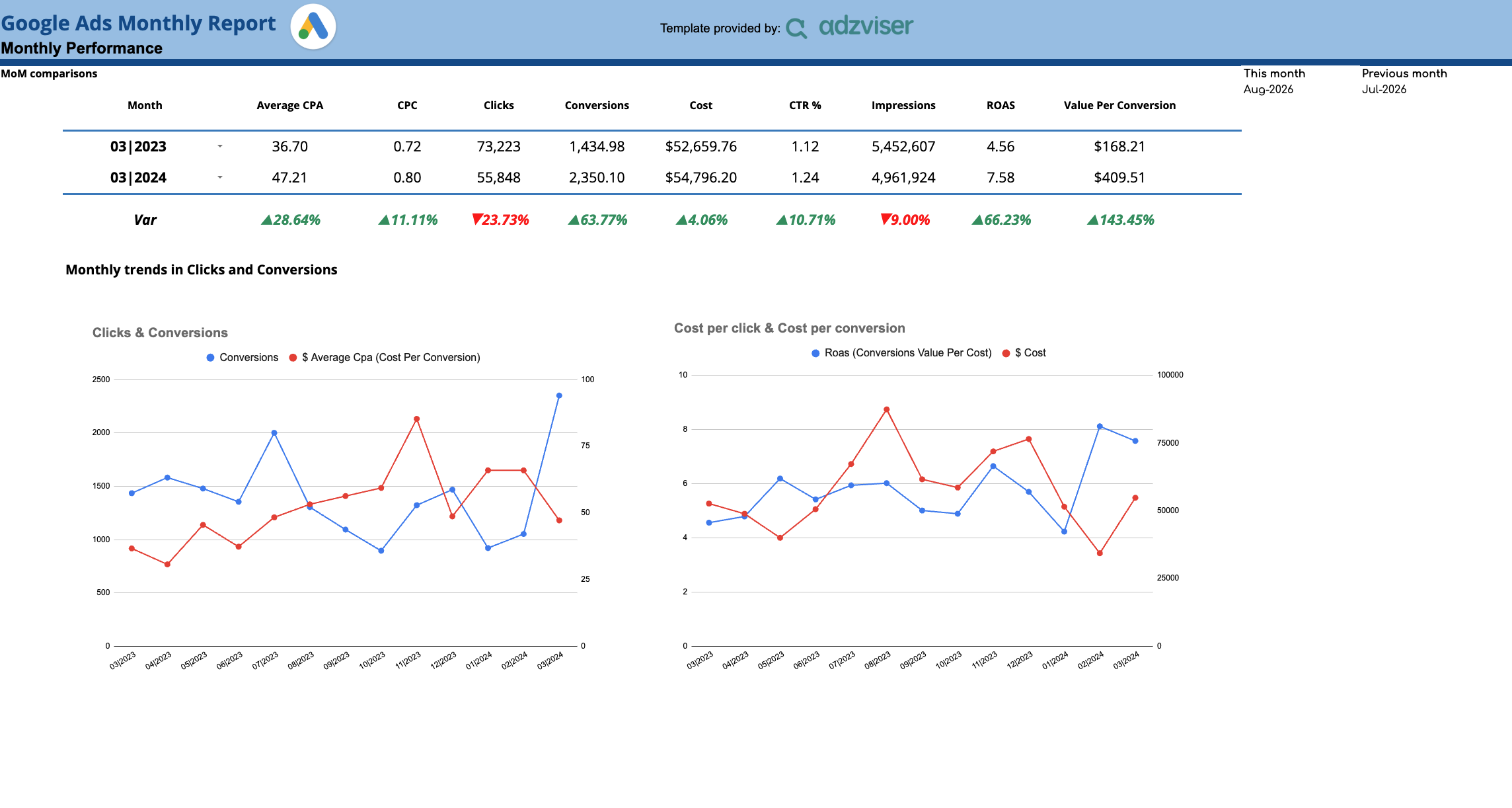
- How are clicks, impressions, and average cpc trending?
- Which campaign advertising channel type values contribute most to clicks?
- Where should the team investigate or optimize Google Ads performance?
 +
+
A Google Ads overview dashboard for Data Studio — track clicks, impressions, average CPC, CTR, cost, conversions, and search lost impression share at a glance, with filters by campaign type, campaign, conversion name, and device.
Get the template →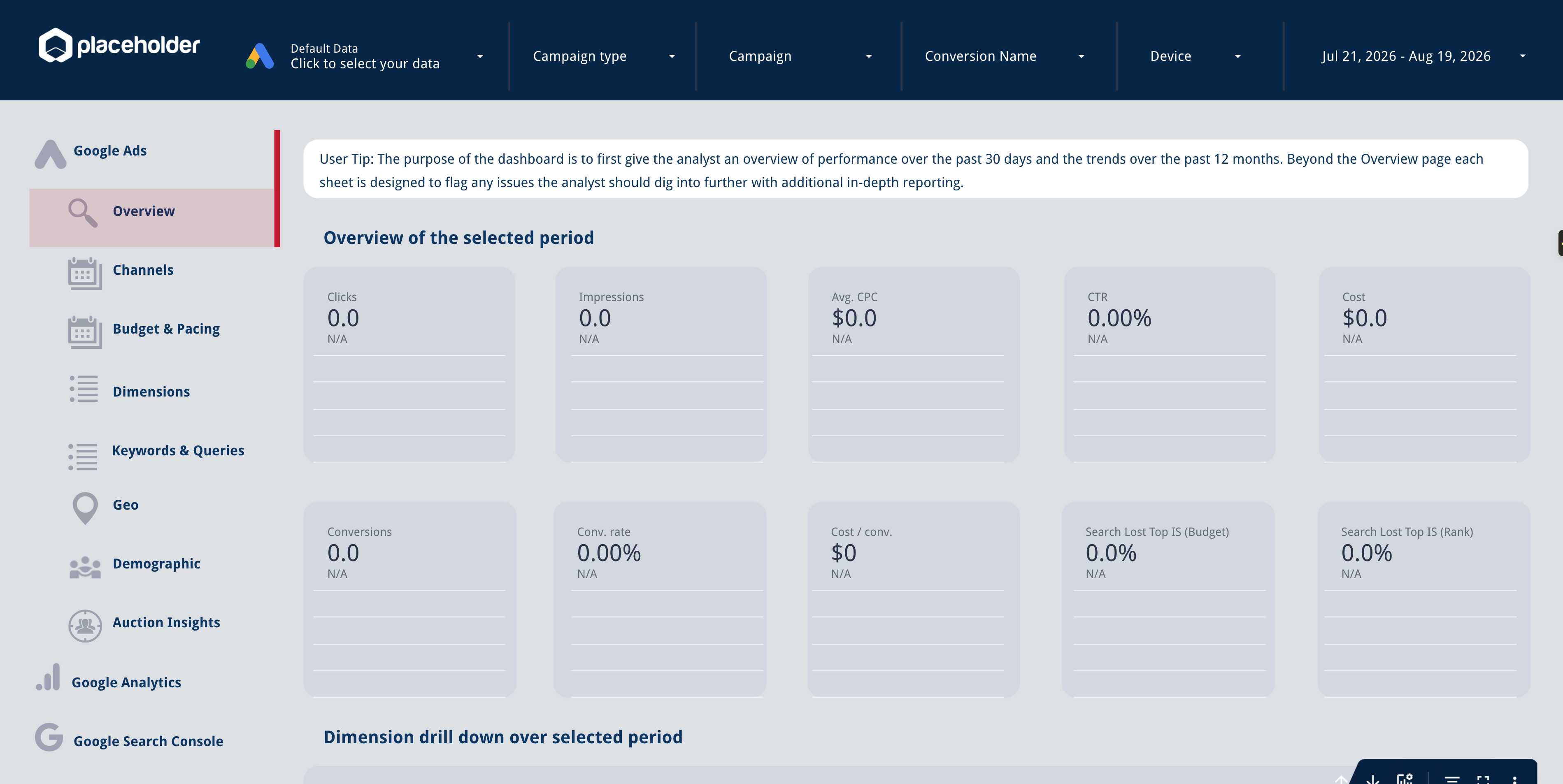
Use the report to answer practical performance questions with the fields and breakdowns already included in this template.
The Google Ads metrics and dimensions this template is pre-built with — no manual setup needed.
Set up your Google Ads Data Studio template in three simple steps.
Create your account and start your 14-day trial for just $0.99. Cancel anytime. Start your trial →
Link your account through secure authentication and select the data you want to report on. Explore the Google Ads connector →
Open the template in Data Studio, connect Adzviser, and customize it to your needs. Learn about Data Studio →
Explore more templates for Google Ads or Data Studio.
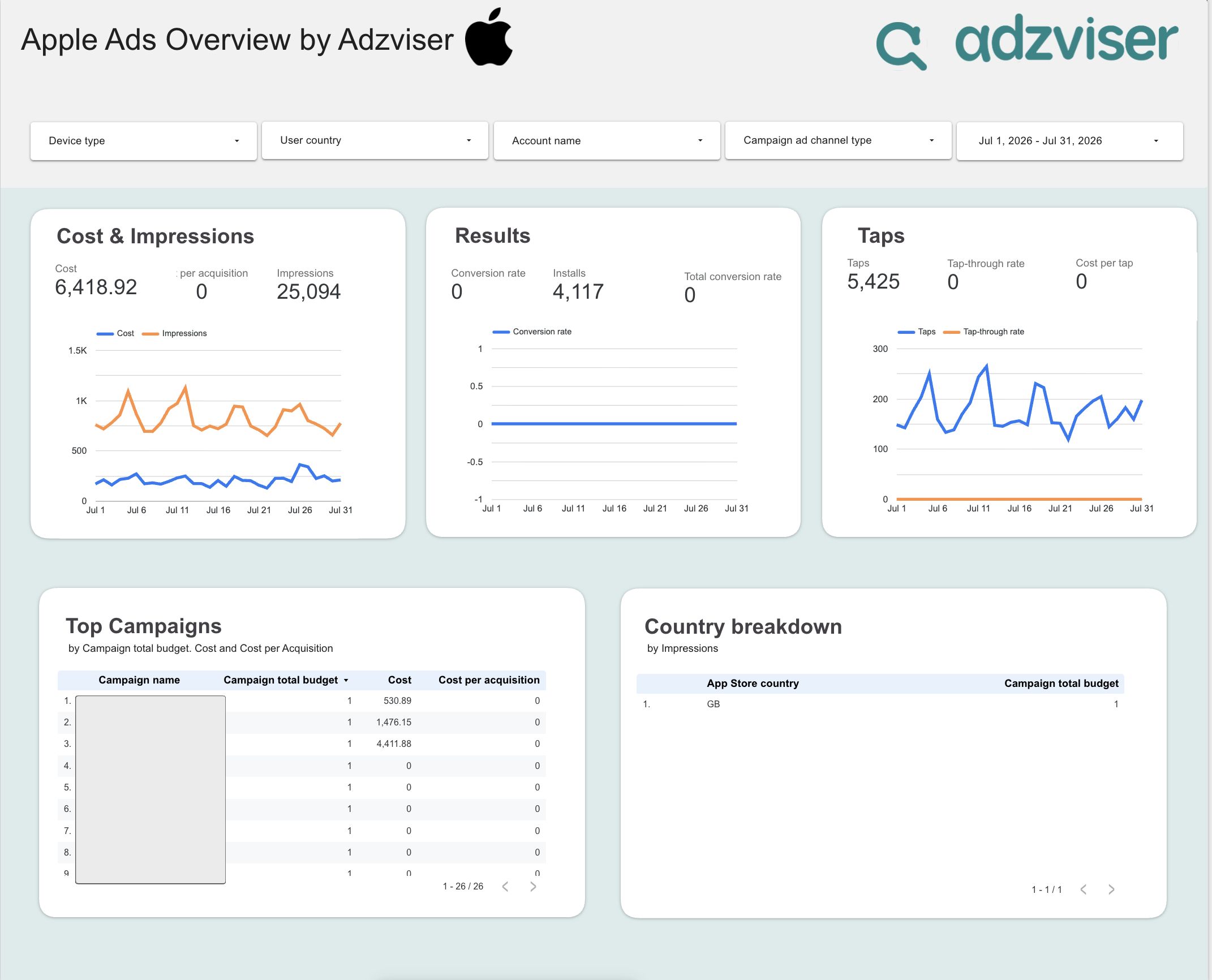
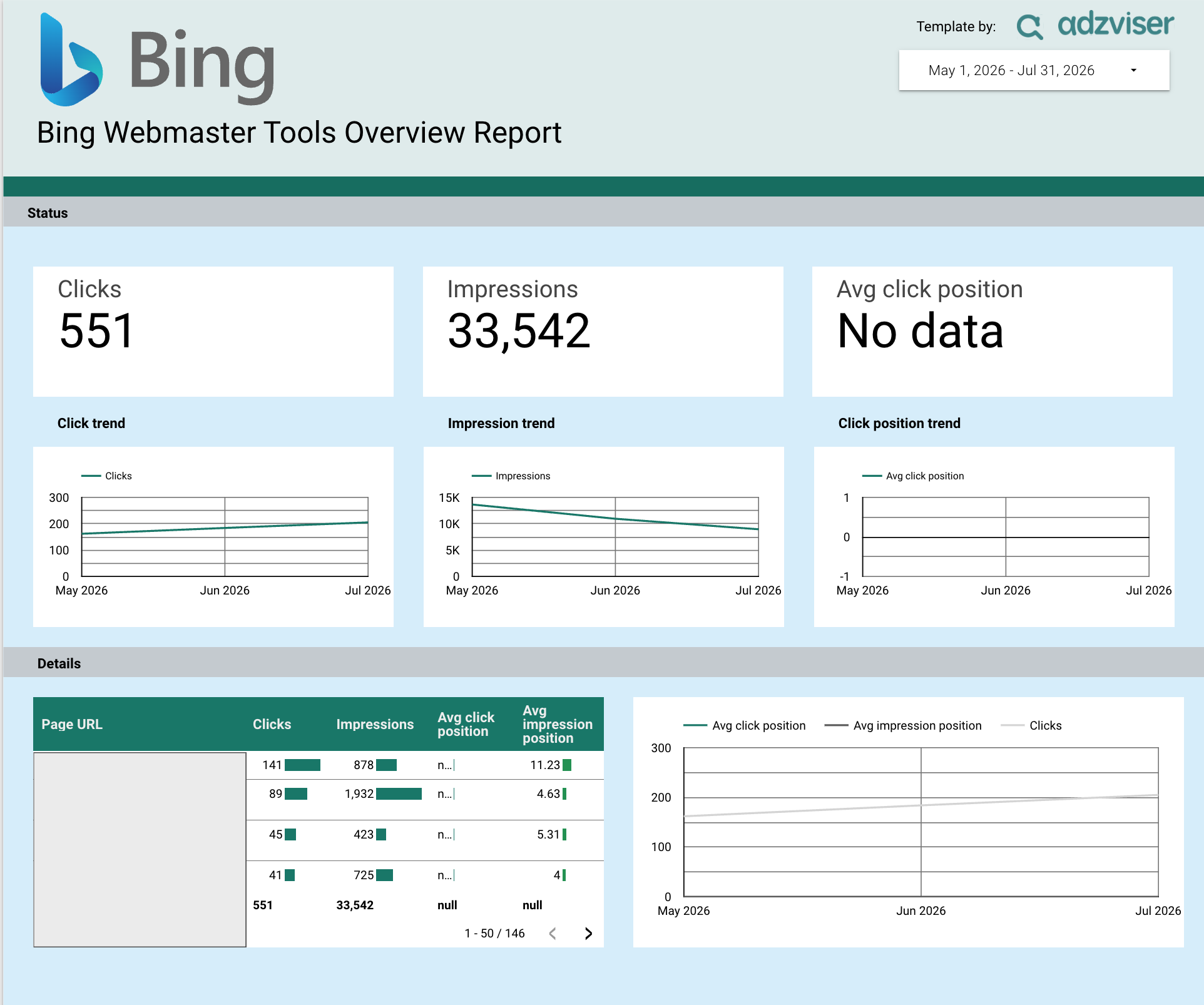
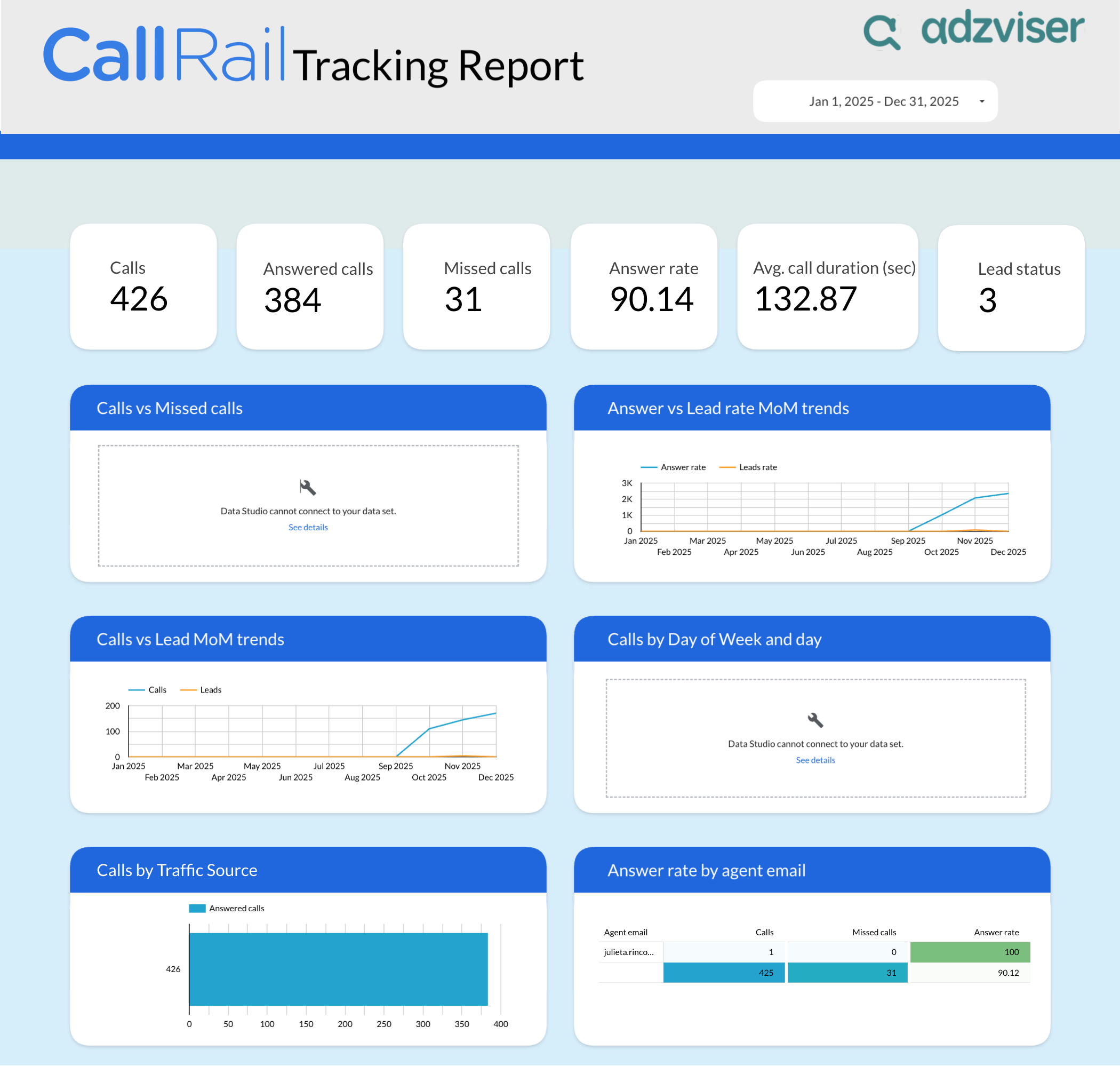
This template is prebuilt with 10 metrics and 5 dimensions, along with the charts, tables, formulas, or controls shown in the preview. The Metrics & Dimensions section above lists the exact fields included in this version.
Make a copy of the dashboard, connect Google Ads to an Adzviser workspace, and replace the template's sample source with your authorized Adzviser data source. Confirm that each chart uses the replacement source. Open the Google Ads connector guide →
Yes. Connect the accounts to your Adzviser workspace, then select or query the accounts needed for the report. For agency workflows, you can also keep a separate copy per client so access, filters, and branding stay independent.
Data Studio requests data through the Adzviser data source and may cache results according to its configured freshness setting. You can manually refresh the report when you need to request the latest available Google Ads data.
Yes. You can change charts, fields, filters, calculated fields, date controls, colors, logos, and pages while keeping the same Adzviser data source. Recheck a chart's field mapping if you replace its source.
The copied dashboard is probably still using its sample connection. Confirm that Google Ads is connected in Adzviser, replace the report's sample source, and reconnect any chart that still points to the old data source.
Yes. The template itself is free to copy and customize in your own account. You need an Adzviser account when you want to replace its sample data with a live Google Ads connection and keep that data refreshed. See Adzviser pricing →