Questions this template answers
- Which marketing sources generate the most qualified calls?
- How do calls, answered calls, and missed calls vary across campaigns or agents?
- Where are missed-call or response-quality problems affecting lead performance?
 +
+
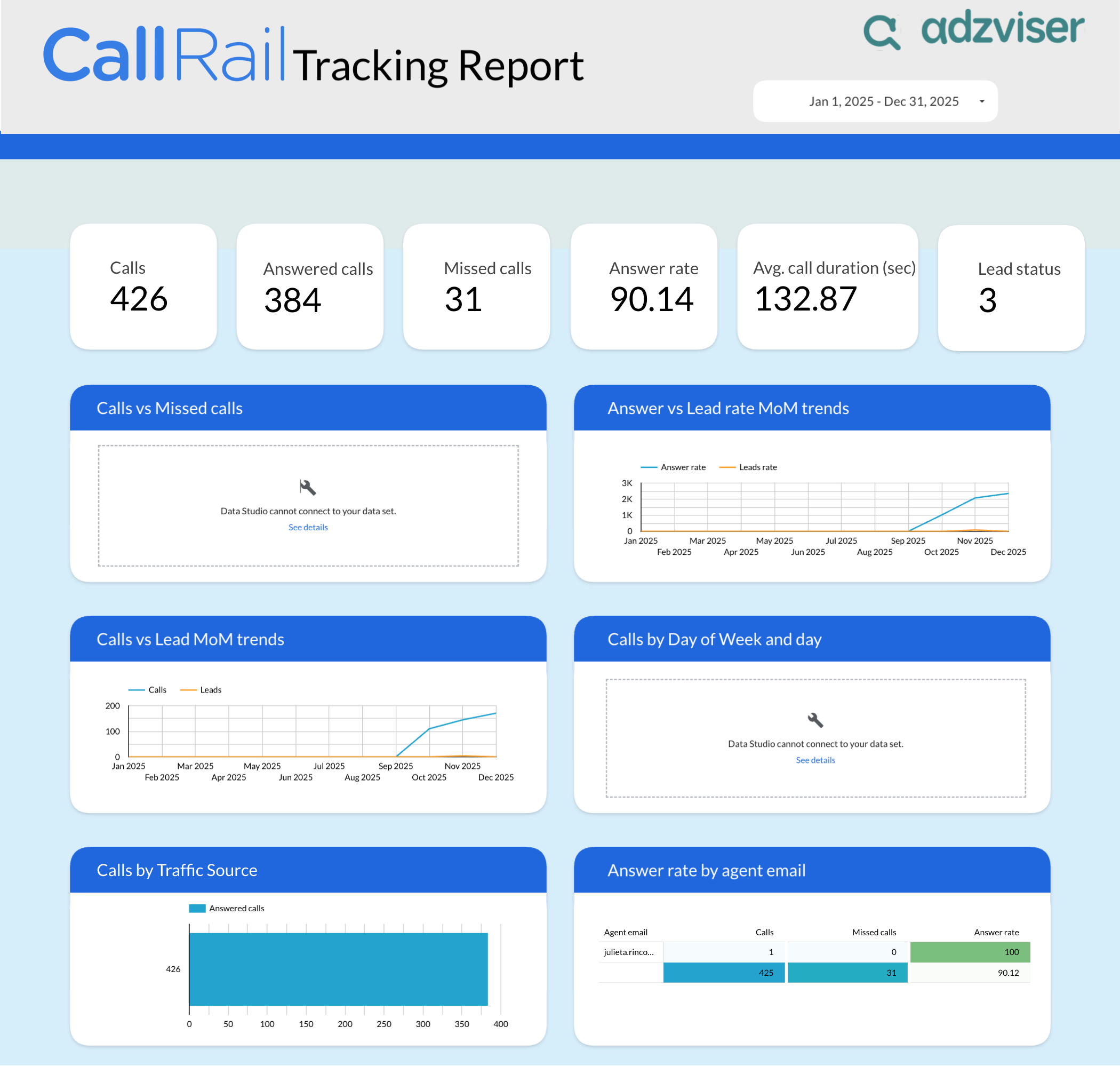
A CallRail monthly performance report for Google Sheets — track calls, leads, answer rate, missed calls, and average call duration at a glance, with source performance, device breakdown, and calls-by-campaign charts, per-agent and per-campaign tables, plus a raw call-level log with tracking and UTM data and a form submissions tab.
Get the template →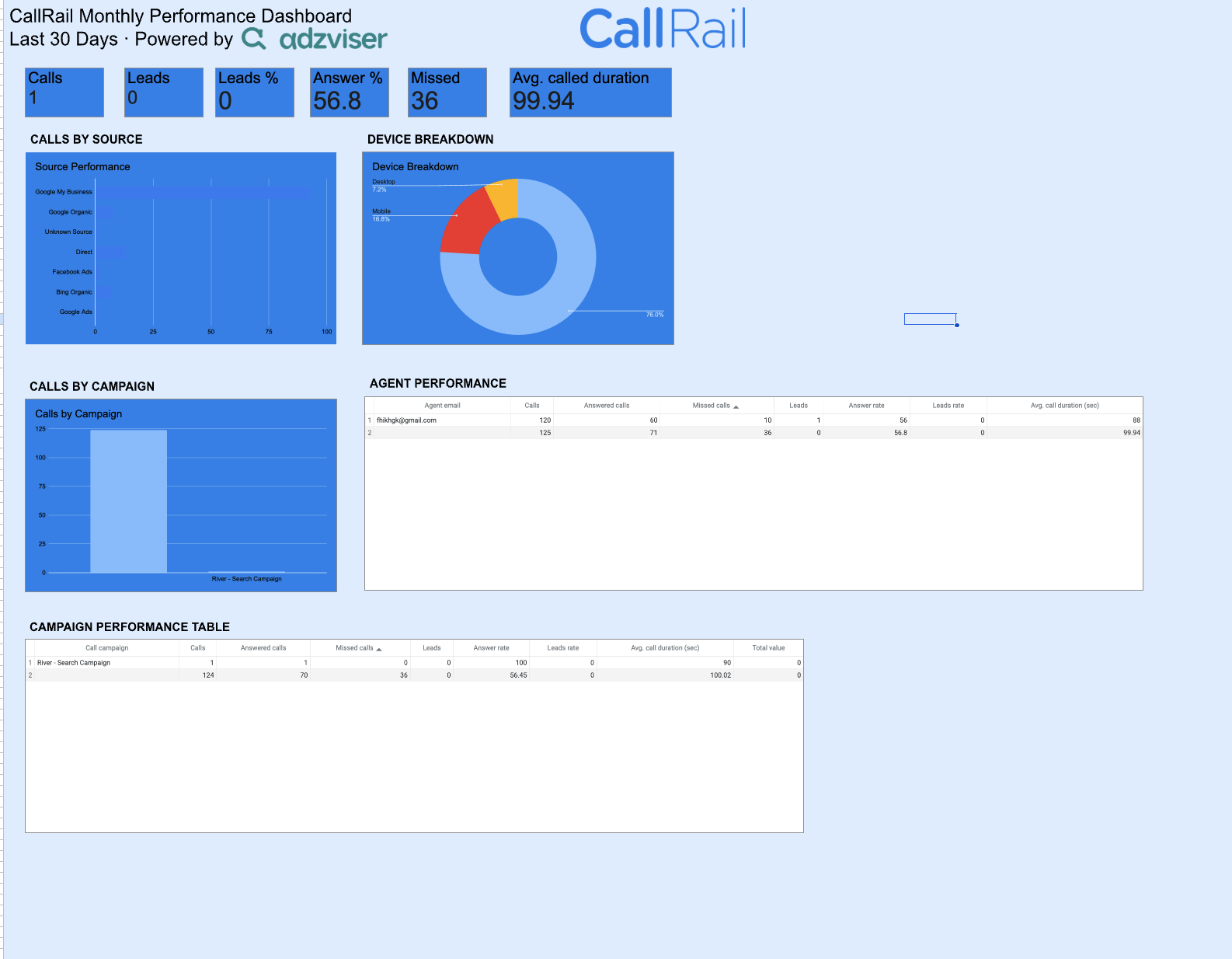
Use the report to answer practical performance questions with the fields and breakdowns already included in this template.
The CallRail metrics and dimensions this template is pre-built with — no manual setup needed.
Set up your CallRail Google Sheets template in three simple steps.
Create your account and start your 14-day trial for just $0.99. Cancel anytime. Start your trial →
Link your account through secure authentication and select the data you want to report on. Explore the CallRail connector →
Open the template in Google Sheets, connect Adzviser, and customize it to your needs. Learn about Google Sheets →
Explore more templates for CallRail or Google Sheets.
This template is prebuilt with 13 metrics and 21 dimensions, along with the charts, tables, formulas, or controls shown in the preview. The Metrics & Dimensions section above lists the exact fields included in this version.
Make a copy of the spreadsheet, connect CallRail to an Adzviser workspace, enter the exact workspace name in the adzviserQuery worksheet, and run Refresh all queries from the Adzviser add-on. Open the CallRail connector guide →
Yes. Connect the accounts to your Adzviser workspace, then select or query the accounts needed for the report. For agency workflows, you can also keep a separate copy per client so access, filters, and branding stay independent.
Use Refresh all queries for an on-demand update, or add an automatic refresh trigger from the Adzviser add-on's Schedule tab. Google Sheets triggers can run daily, weekly, or monthly. See refresh instructions →
Yes. You can change formulas, charts, pivot tables, formatting, queries, and tabs. Keep imported column names and ranges stable—or update anything that references them—so later refreshes continue feeding the report correctly.
Confirm that you copied the file, installed the Adzviser add-on, connected CallRail, and entered the exact workspace name expected by adzviserQuery. Run Refresh all queries and review any error shown in the add-on sidebar.
Yes. The template itself is free to copy and customize in your own account. You need an Adzviser account when you want to replace its sample data with a live CallRail connection and keep that data refreshed. See Adzviser pricing →