Free Facebook Ads Google Sheets Report Templates
Choose a ready-to-use Facebook Ads report template, connect live data with Adzviser, and start tracking performance in Google Sheets.
Choose a Facebook Ads Google Sheets Report Template
Start with the view that matches your reporting goal. Each template is designed for live Facebook Ads data and can be customized in Google Sheets.
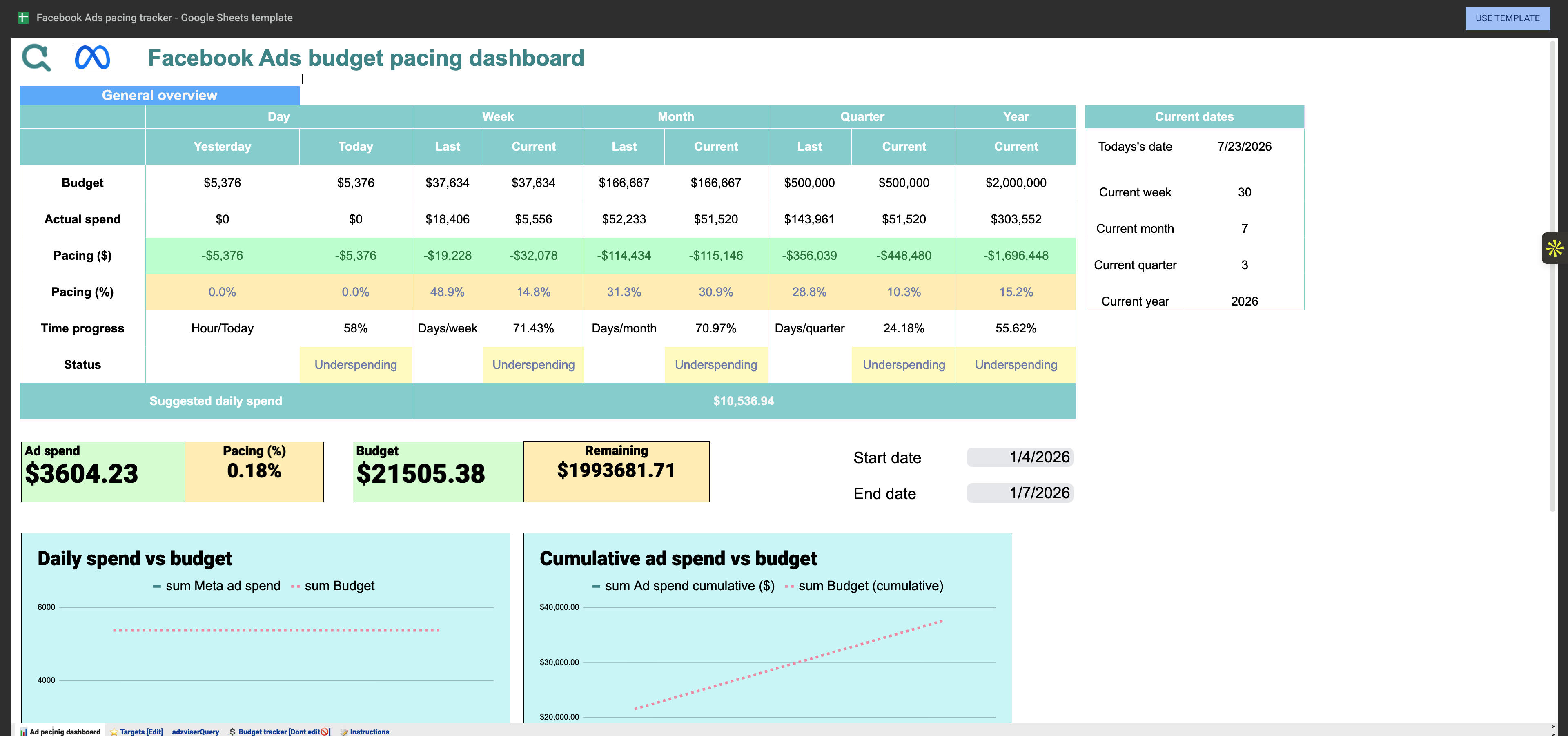


Facebook Ads Budget Tracking & Pacing Dashboard
Monitor budget pacing across your Facebook Ads campaigns — track spend to date against target budget so you never over- or under-spend.
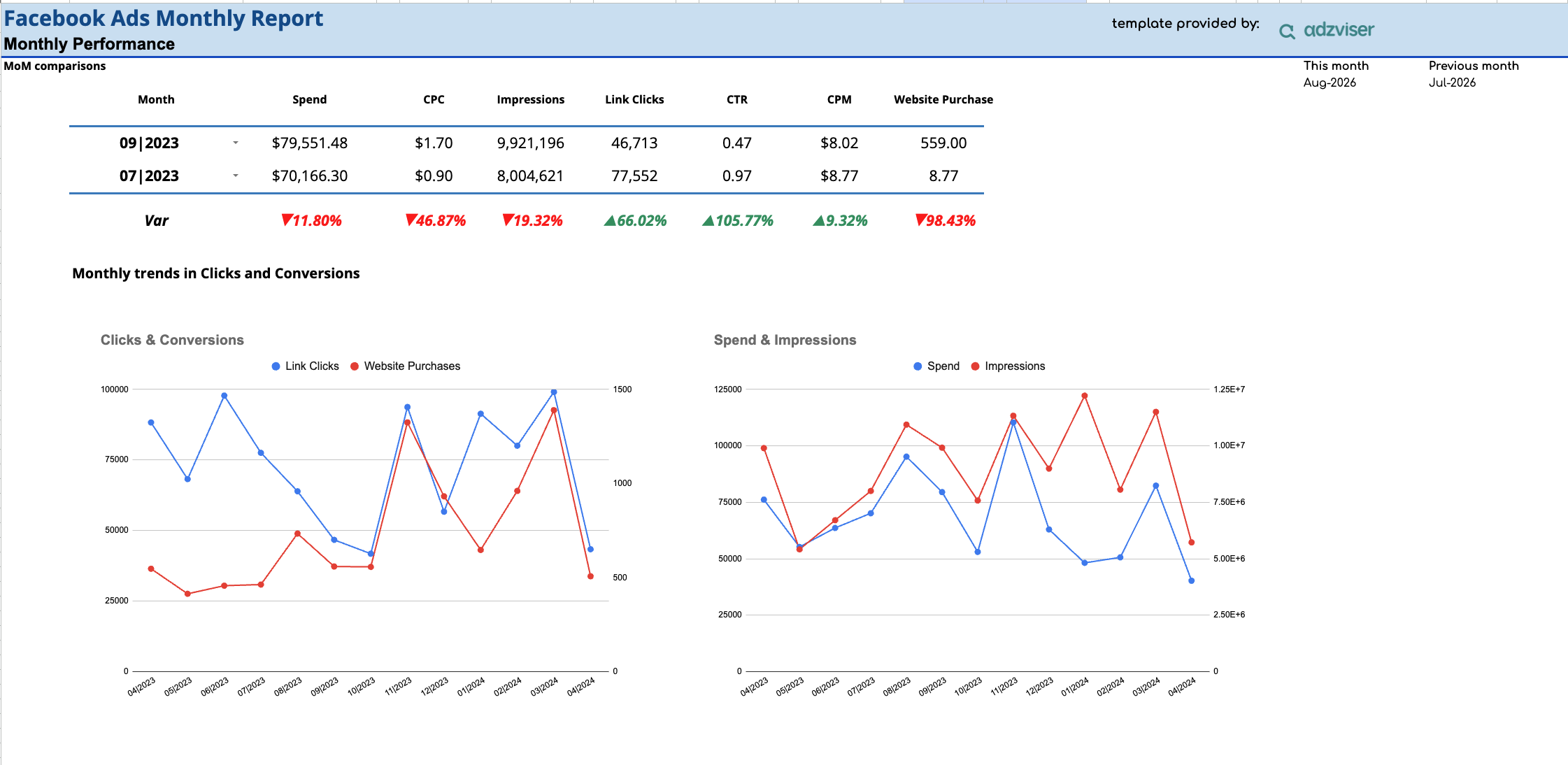
Facebook Ads Monthly Report Template
A Facebook Ads monthly performance report for Google Sheets — compare spend, CPC, impressions, link clicks, CTR, CPM, and website purchases month-over-month, with trend charts and breakdowns by campaign, device, and demographics.
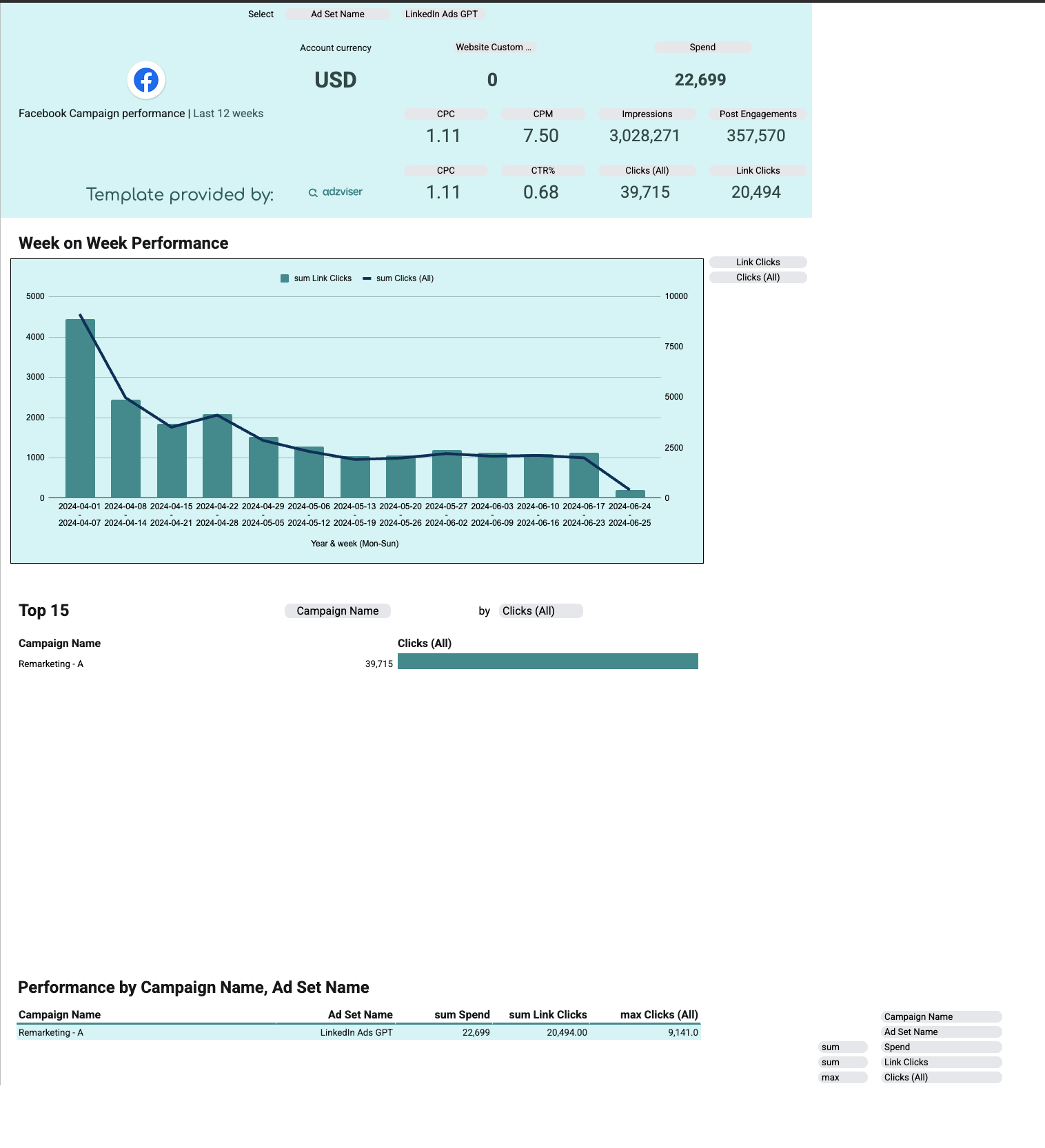
Facebook Ads Weekly Campaign Performance
A Facebook Ads weekly campaign performance report for Google Sheets — track spend, CPC, CPM, impressions, post engagements, CTR, and clicks over the last 12 weeks, with a week-on-week trend chart and a top-15 campaign breakdown by ad set.
Facebook Ads Metrics and Dimensions Included
The available templates cover practical Facebook Ads performance fields, so you can analyze results without building every chart and table from scratch.
Popular metrics
- Spend
- CPC (Link)
- Impressions
- Link Clicks
- CTR (Link Click-Through Rate)
- CPM
- Website Purchases
- CPC
- Post Engagements
- CTR%
- Clicks (All)
- Website Custom Conversions
Useful dimensions
- Date
- Month
- Campaign Name
- Ad Name
- Impression Device
- Account Currency
- Demographics
- Date Range
- Year & Week
- Ad Set Name
- Campaign Objective
Explore Facebook Ads Templates by Destination
Choose the reporting format that matches how your team presents, analyzes, and updates Facebook Ads data.
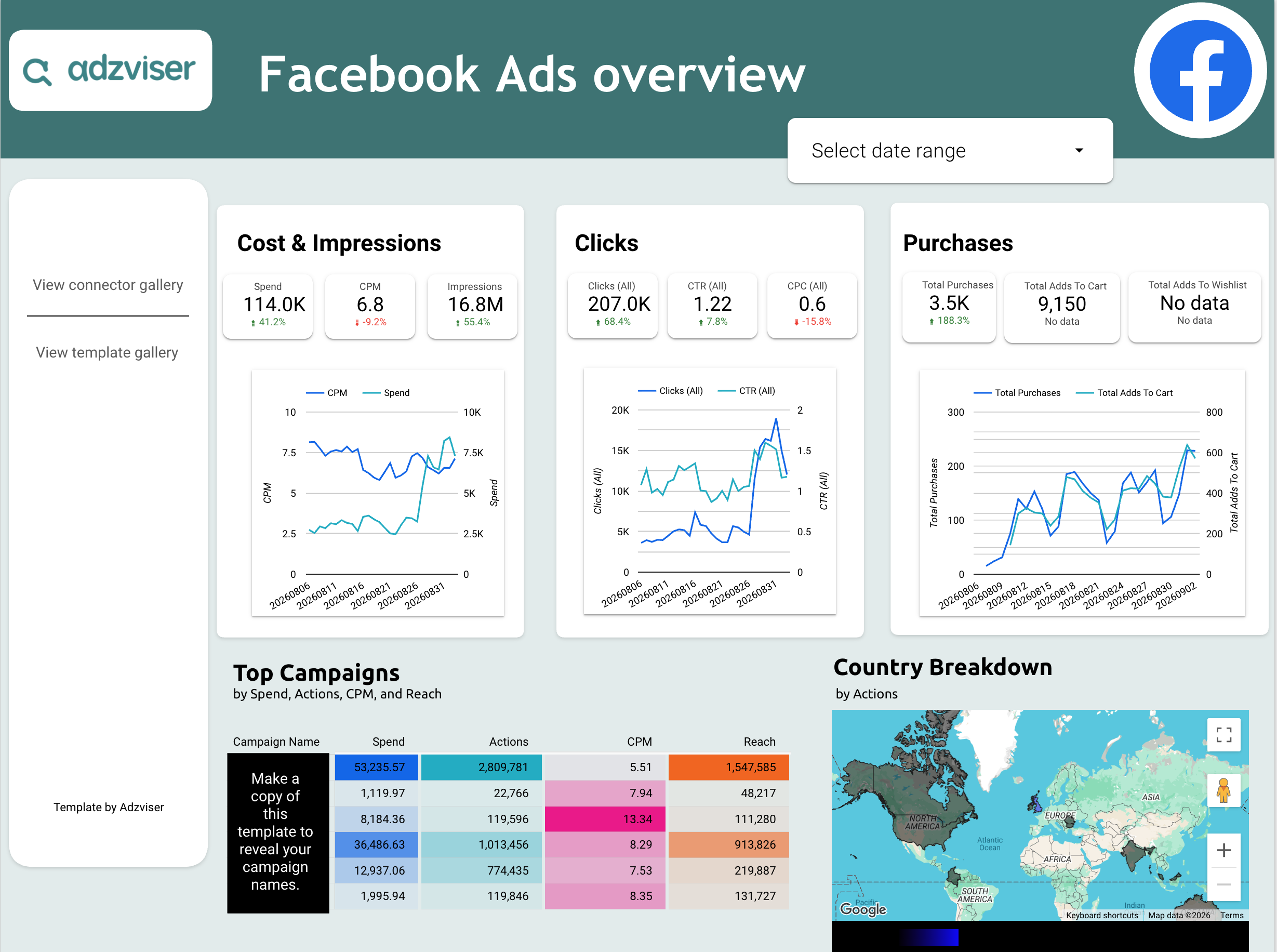
How to Use a Facebook Ads Google Sheets Template
Set up a live Facebook Ads report in Google Sheets with the same guided workflow used across Adzviser integrations.
Choose a template
Open the report that best fits the Facebook Ads results you want to monitor.
Connect Facebook Ads
Authorize your account in Adzviser and select the accounts you want the template to report on. Explore the Facebook Ads connector →
Customize and share
Adjust date ranges, filters, charts, and branding directly in Google Sheets. Learn about Google Sheets →
Facebook Ads Google Sheets Template FAQs
Make a copy of the spreadsheet, connect Facebook Ads to an Adzviser workspace, enter the workspace name in the adzviserQuery sheet, and run Refresh all queries from the Adzviser add-on. Open the Facebook Ads connector page →
The metrics and dimensions listed above are taken from the templates in this collection. Open an individual template to see its exact field set. You can then add or replace fields supported by the Facebook Ads connector.
Yes. Connect the required accounts to your Adzviser workspace. You can select or query multiple accounts, or keep a separate template copy for each client when you need independent filters, access, and branding.
Run Refresh all queries whenever you need fresh data, or create a daily, weekly, or monthly automatic refresh trigger from the Schedule tab in the Adzviser Google Sheets add-on. See Google Sheets refresh instructions →
Yes. Edit the copied workbook to change queries, date ranges, metrics, dimensions, formulas, pivot tables, charts, tabs, and formatting. Keep referenced columns stable or update dependent formulas after changing them.
Confirm that the Facebook Ads account is connected, the workspace name in adzviserQuery is exact, and the Adzviser add-on is installed in your copied file. Then run Refresh all queries and review any error shown in the sidebar.
Yes. You can open, copy, and customize the templates for free. An Adzviser account is required when you replace the sample data with a live Facebook Ads connection.